
How to Track 404 Error Pages in Google Analytics?
- Gamze Sucu

- 1xx – Informational
- 2xx – Success
- 3xx – Redirection
- 4xx – Client Error (Browser Error)
- 5xx – Server Error
In this blog post, we talked about 404 error pages, one of the most common errors in the digital world, and how to track these pages in Google Analytics. If visitors who log in to the website encounter 404 during their transactions, they usually leave the site or terminate the transaction. As a general behavior, in case of such errors, the user may prefer to switch to another platform instead of repeating the process.
Detecting 404 Error Pages Step by Step with Google Analytics
- 1) Add analytics code to 404 pages to track 404 errors with Google Analytics.
- 2) In cases where there is an analytics code on your 404 pages, view a 404 page with your browser where you get an error code.
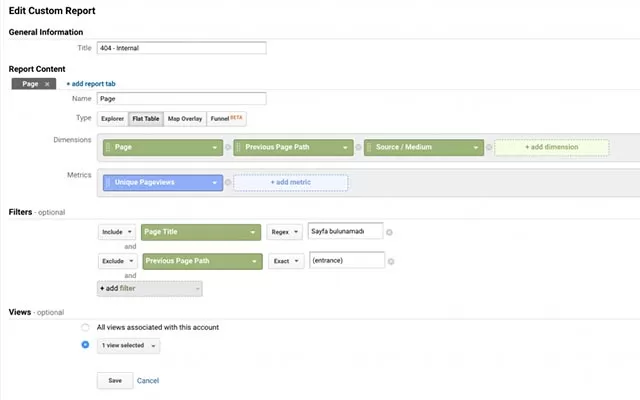
- 3) From your Analytics account with administrator privileges, log in to your site’s property page. Follow the Behavior > Site Content > All Pages path respectively. Select “Page Title” from the options that appear.
- 4) Click on the “advanced” button around the list that appears as a result of the path you have followed. From here, select the pages to view to include only the title found in your 404 pages.
- 5) As a result of the processes you follow, you can monitor 404 pages on your site. Here you can view in detail which pages, in which time periods, visitors received errors.
Why 404 Errors Occur?
Which Routing to Use for 404 Errors?
